Endpoint settings
GENERAL
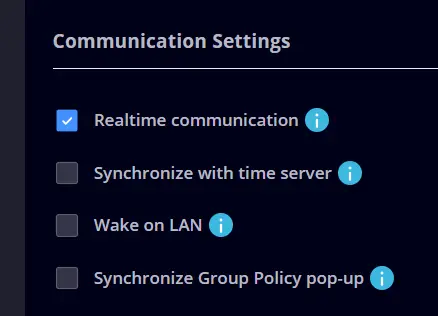
In the General Management sub-tab:
- Make sure to enable Real-time communication.
In the Scripting sub-tab:
- Enable the Scripting product.

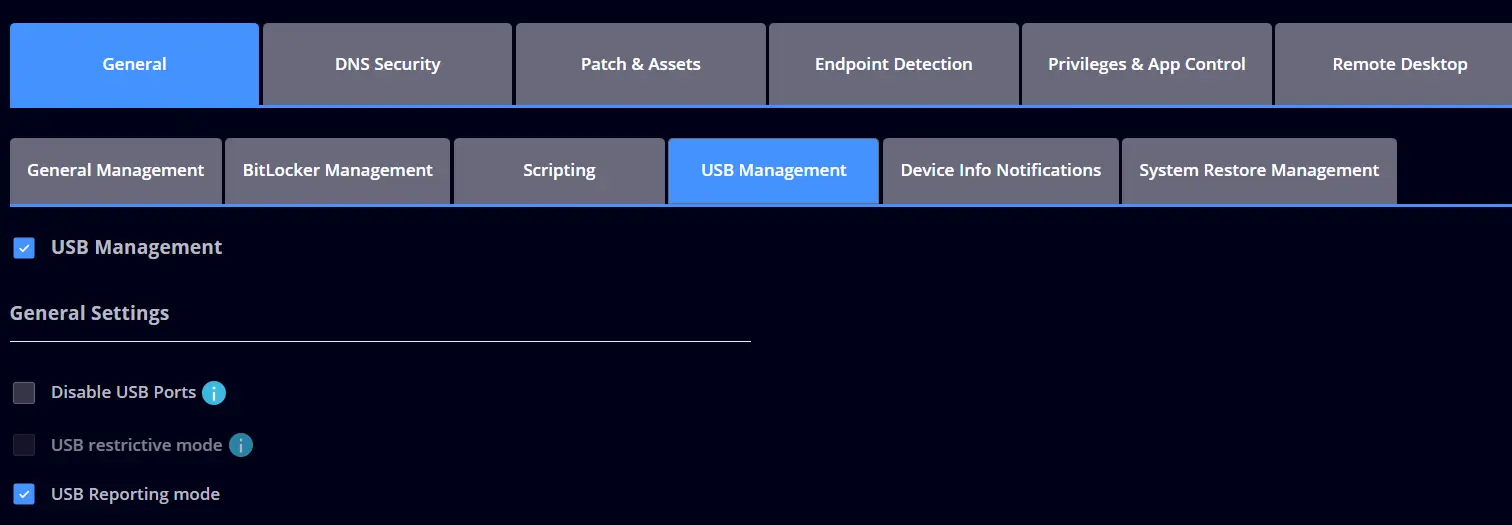
In the USB Management tab:
- Enable the USB Management.
- Have the USB Reporting mode enabled.
DNS SECURITY - ENDPOINT
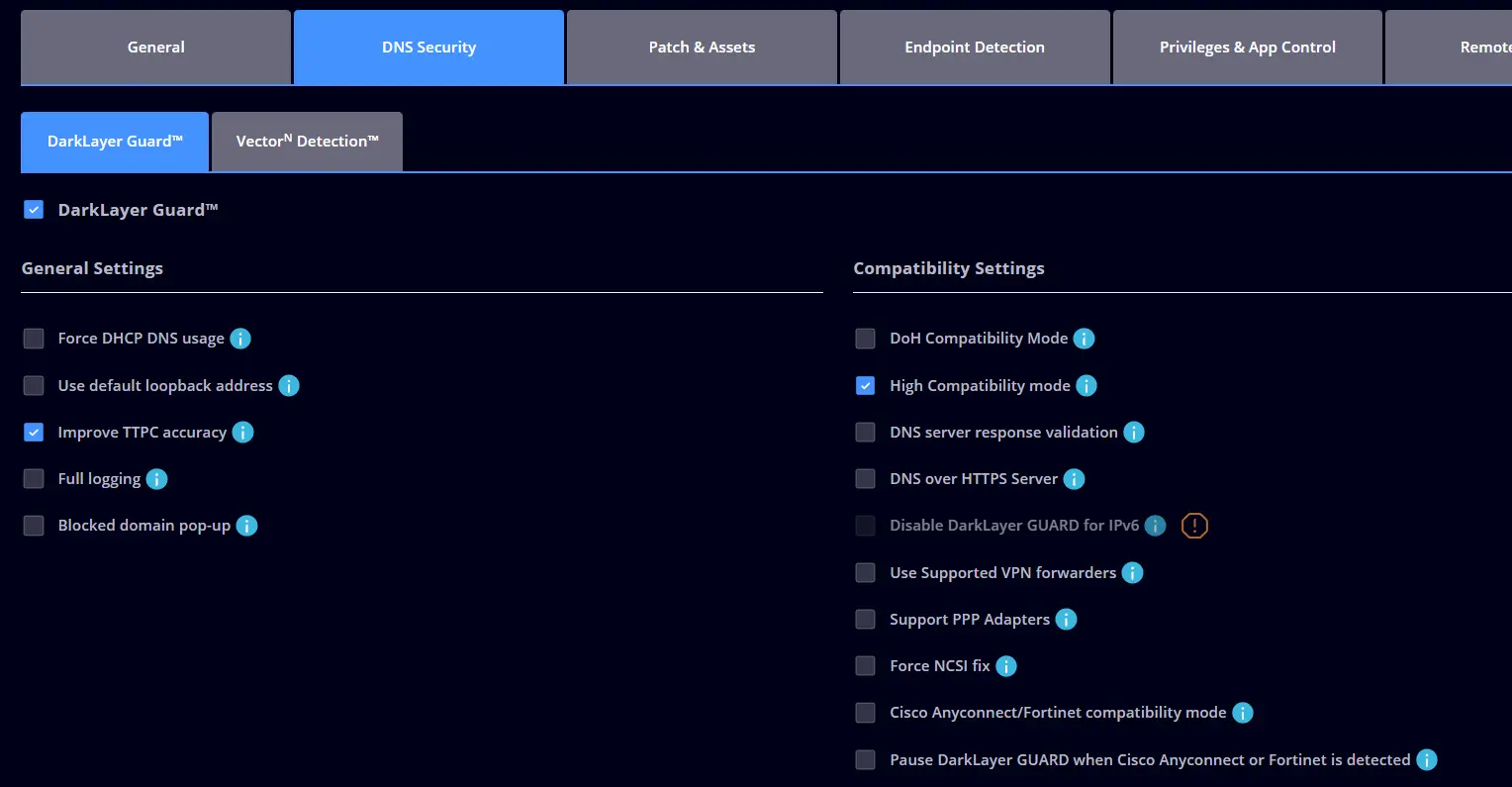
In the DarkLayer Guard sub-tab
- Enable Improve TTPC accuracy.
- Enable High Compatibility mode.
- DO NOT enable the following options: Force DHCP DNS usage, Use default loopback address, Cisco Anyconnect/Fortinet compatibility mode, Use Supported VPN forwarders, and Support PPP Adapters. These options are designed to solve some compatibility issues between the HEIMDAL Agent and certain VPN products. If you use a certain VPN product on the device you wish to deploy the HEIMDAL Agent, please get in contact with Heimdal Support to advise you on what settings you should enable.
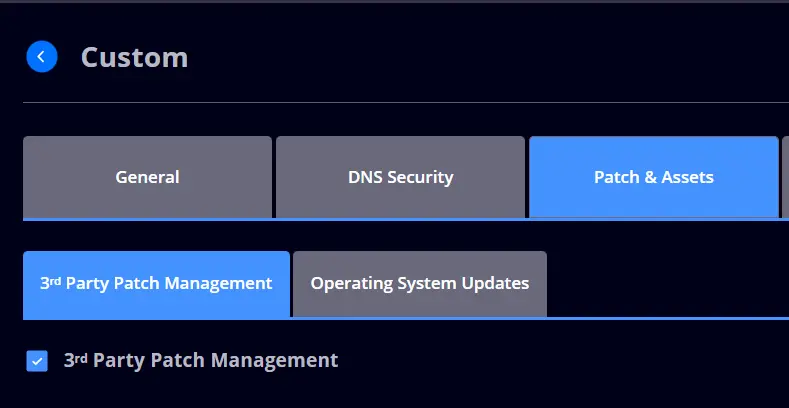
3RD PARTY PATCH MANAGEMENT
- Enable Keep all applications up to date.
- DO NOT enable the Install All function for all the applications. By doing this, the HEIMDAL Agent will install all the applications that are supported by the 3rd Party Patch Management.
- We suggest you set up a scheduler for installing patches, as this will give you control over the management of vulnerabilities found in the 3rd Party Patch Management.
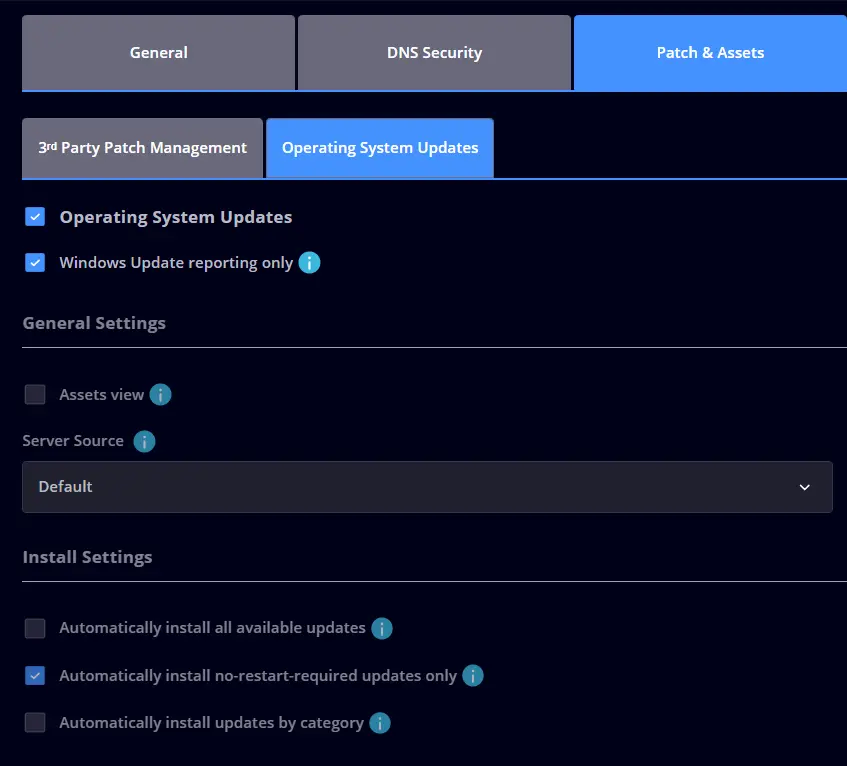
OPERATING SYSTEM UPDATES
- Enable Automatically install no-restart-required updates only.
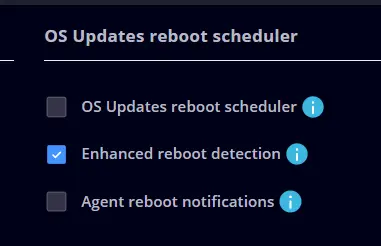
- Enable the Enhanced Reboot Detection option. This will allow the HEIMDAL Agent to detect the reboots required by endpoints when a Windows Update is completed.
- Make sure you set up an OS Updates Schedule and an OS Updates Reboot Schedule that suits your needs.
- DO NOT enable the option called Force reboot during time selection.
NEXT-GEN ANTIVIRUS
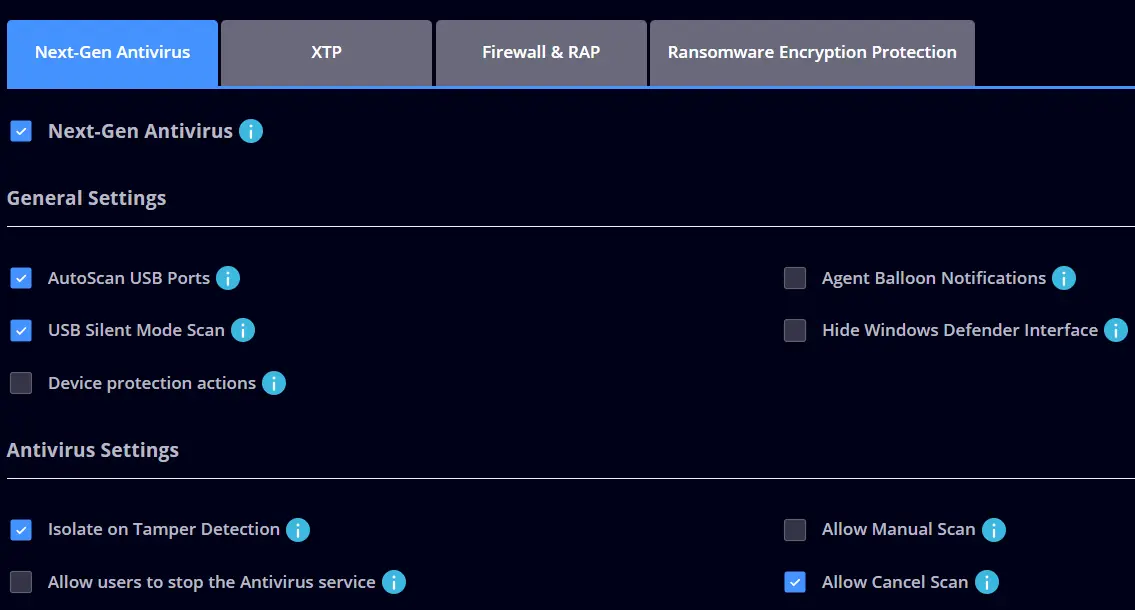
- Make sure USB Silent Mode Scan is enabled.
- Make sure Isolate on Tamper Detection is enabled.
- The Zero-Trust Execution Protection option should be enabled in Reporting mode for the first two weeks. Once these two weeks have passed, please check all the false positive detections and whitelist them.
- DO NOT enable the option called Real-Time Scan Network Files.
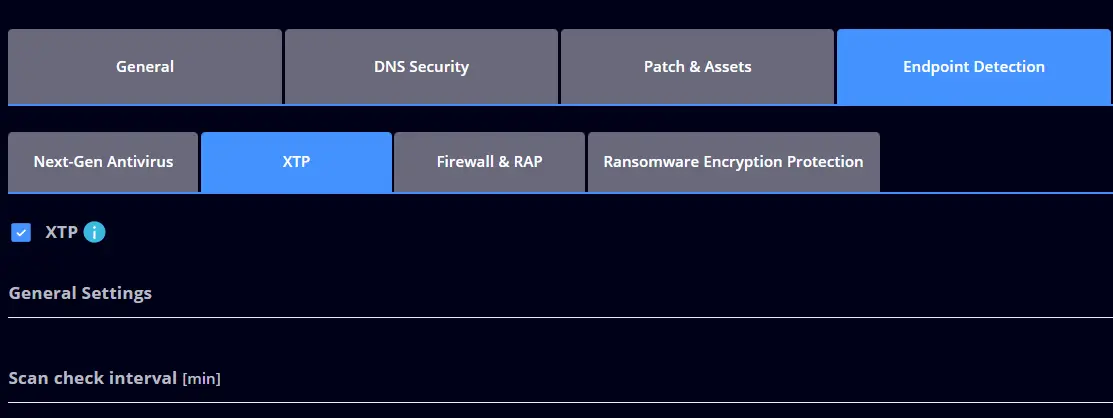
XTP
- Enable the XTP product.
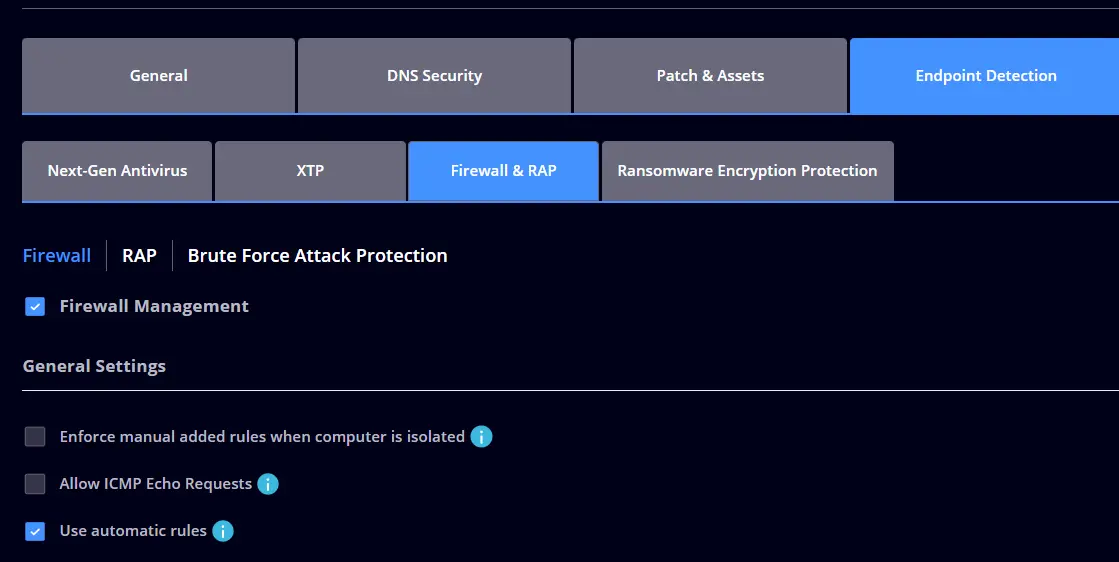
FIREWALL & RAP
- Enable Firewall Management.
- Make sure Use automatic rules is enabled.
- Make sure Isolate on Tamper Detection is enabled.
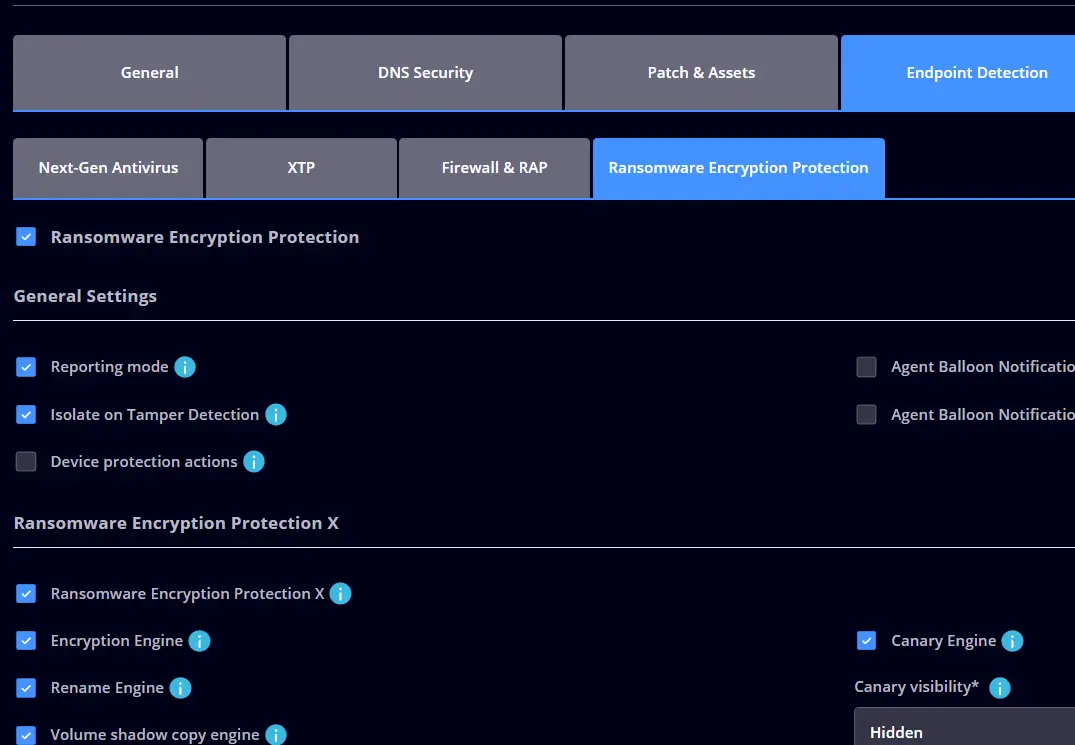
RANSOMWARE ENCRYPTION PROTECTION
- Enable this module in reporting mode for the first two weeks. Once these two weeks have passed, please check all the false positive detections and whitelist them.
- Make sure Isolate on Tamper Detection is enabled.
- Enable Ransomware Encryption Protection X.
- Enable Encryption Engine.
- Enable Rename Engine.
- Enable Volume shadow copy engine.
- Enable Canary Engine.
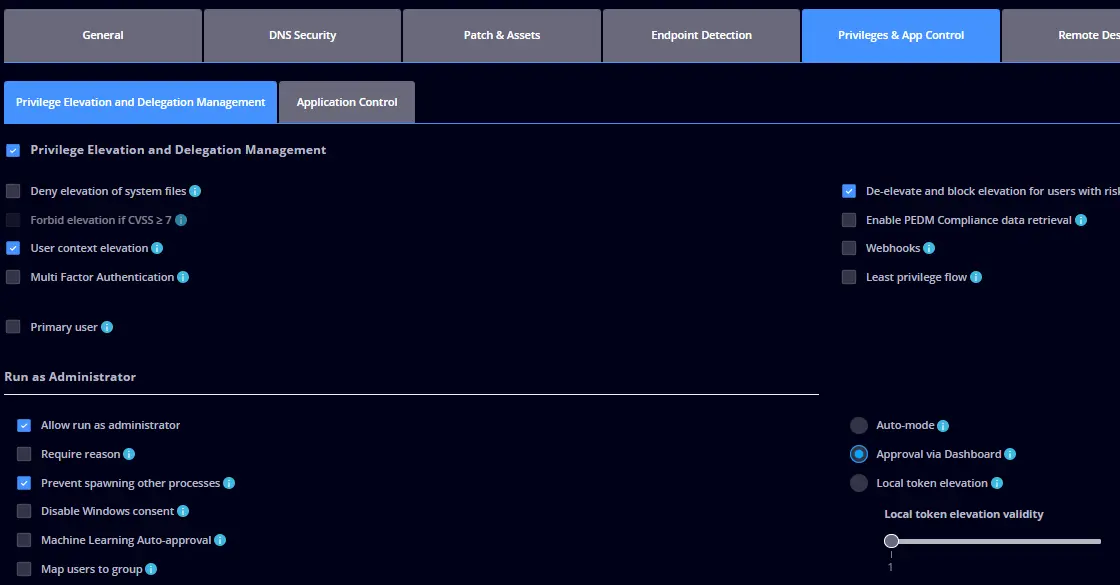
PRIVILEGED ACCESS MANAGEMENT
- Enable User context elevation.
- Enable Allow run as administrator with Approval via Dashboard.
- Enable Allow administrator session with Approval via Dashboard.
- Enable Allow user to end elevation.
- Enable Use default Tools.
- DO NOT enable the option called Automatically close all processes started during an elevation when the session ends. This might close vital processes used by the operating system.
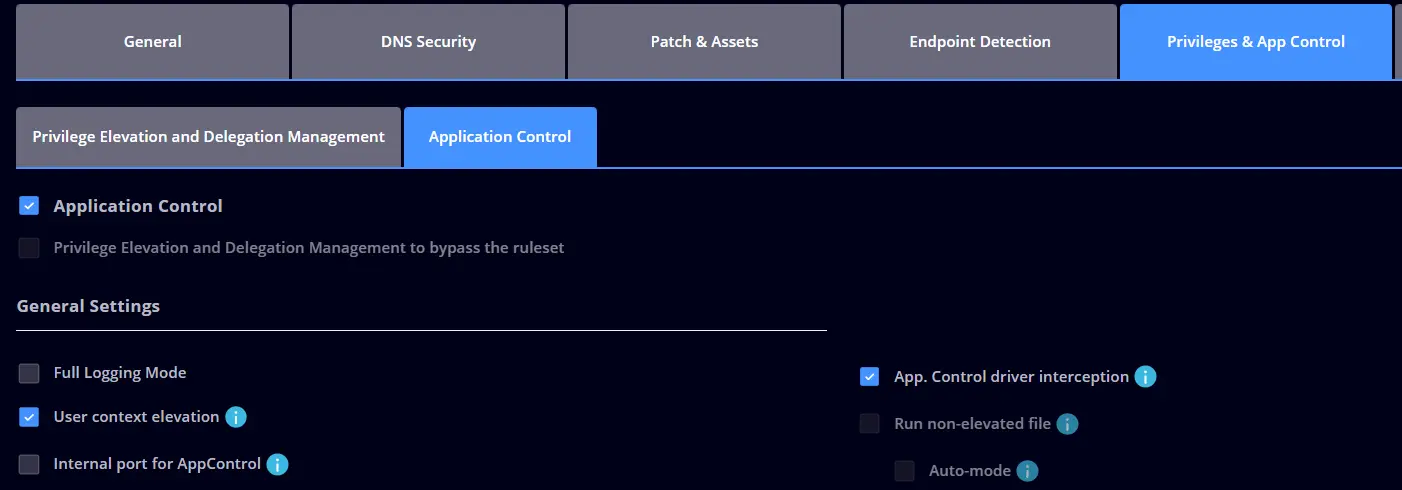
APPLICATION CONTROL
- Enable User context elevation.
- If you use Application Control, make sure you enable App. Control driver interception.
REMOTE DESKTOP
- Enable Remote Desktop.
Network settings
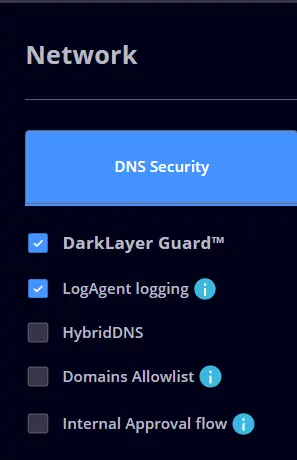
DNS SECURITY - Network
- Enable LogAgent logging
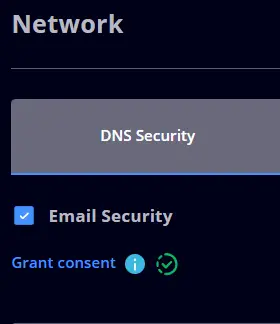
EMAIL PROTECTION
- Enable the billing Entra ID application by pressing Grant consent billing.
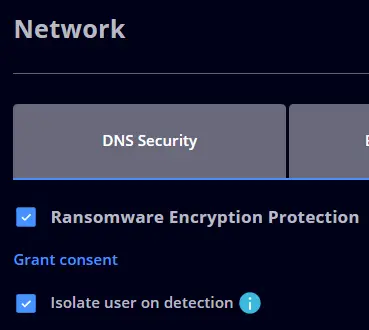
RANSOMWARE ENCRYPTION PROTECTION
- Enable the REP Entra ID application by pressing Grant consent.
- Enable Isolate user on detection.
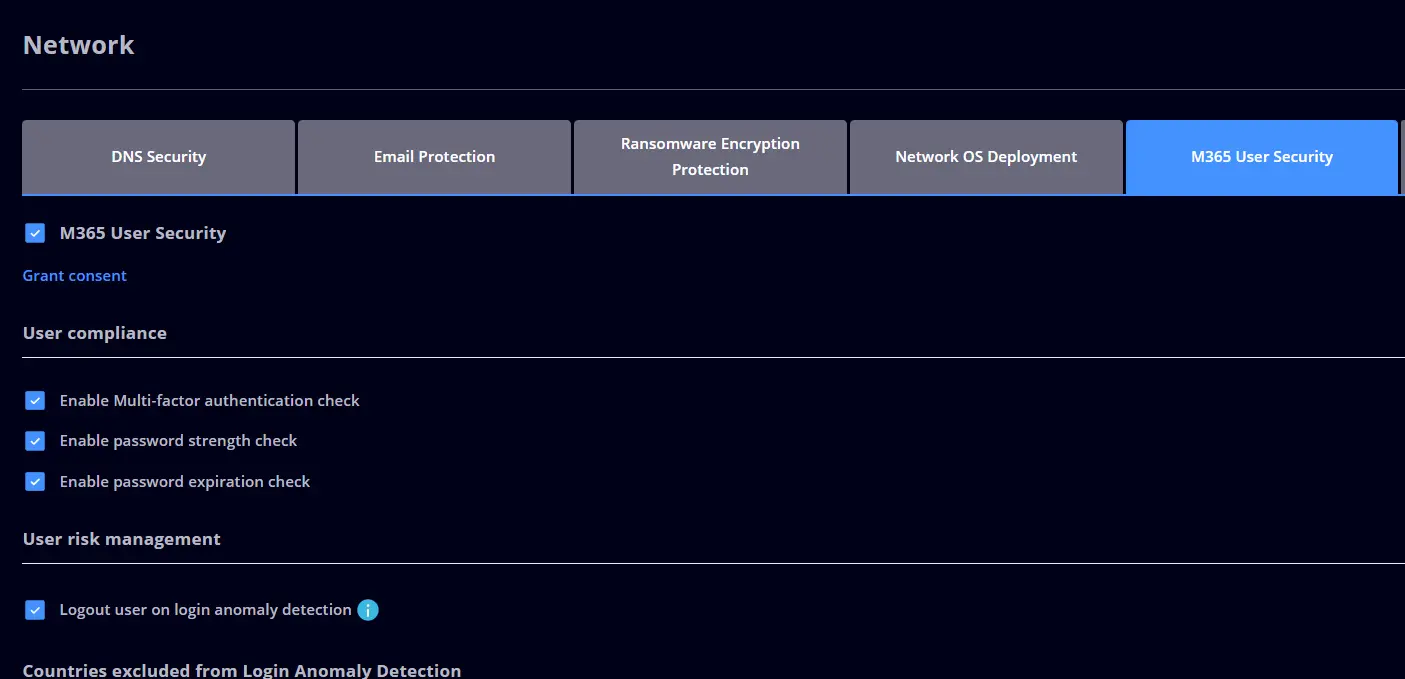
M365 USER SECURITY
- Enable Multi-factor authentication check.
- Enable Password strenght check.
- Enable Password expiration check.
- Enable Logout user on login anomaly detection.